Having built a cool LED display, I needed to put something useful on it. Enter Spotify! With it's API we can fetch the currently playing song and show the song art on the display.
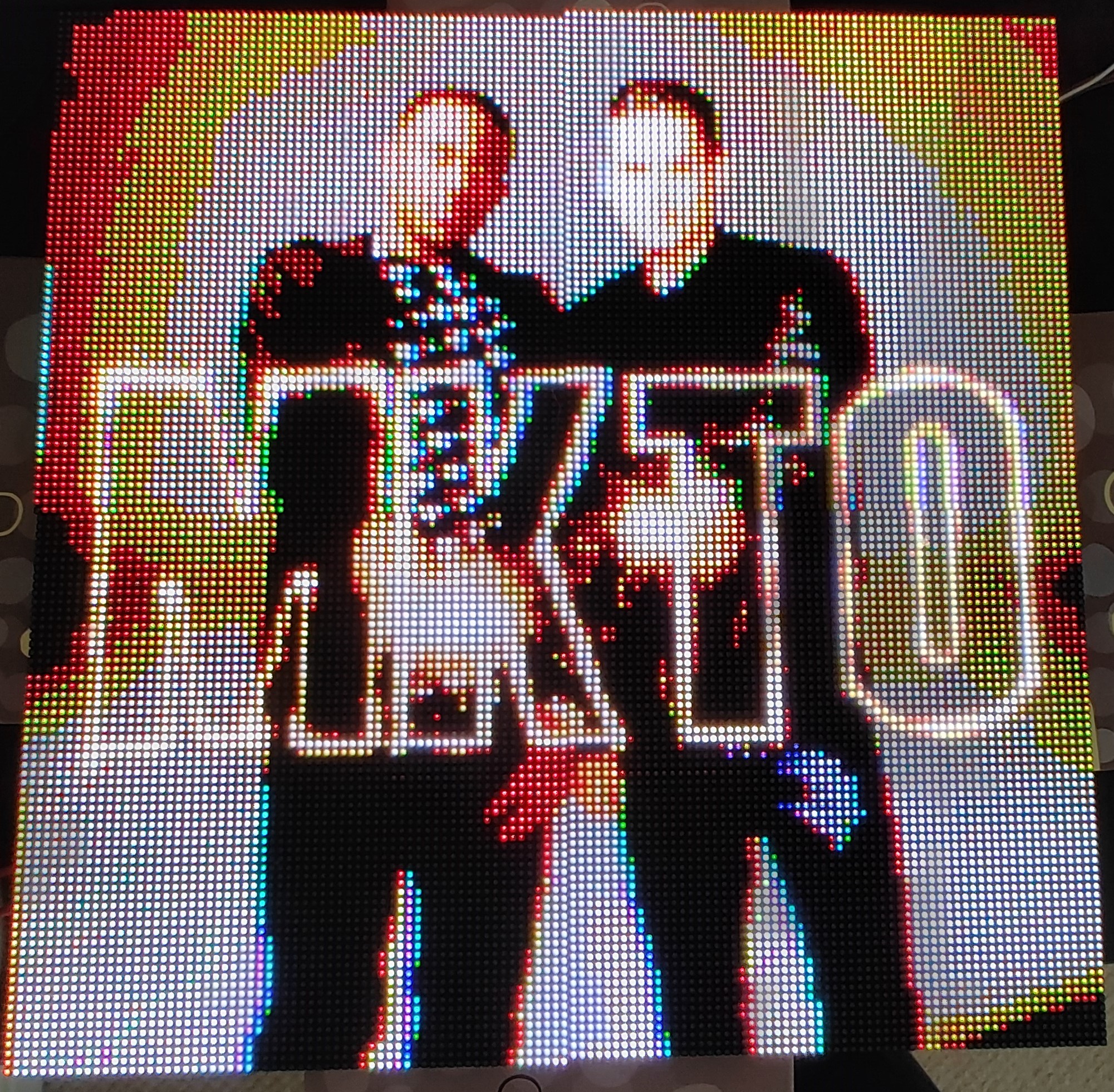
The problem was to get an image onto the display. I had decided that I would send the data over UART with my web based serial port tool that I made in a previous post.
To begin with I found a library that I could use to extract pixel data from an uploaded image. The image was resized to 128*128, and then set the colour depth to 5-bit, to match the specs of the display.
let res = ctx.getImageData(0, 0, 128, 128) //get pixel data for 128*128 area
let list = Array.from(res.data) //create an array from data
list = list.map(scaleTo5Bit) //scale data to 0-31
Next I had to format the pixel data in the way that the FPGA was expecting. This involved re-ordering the pixels and combining them into 32-bit packets.
for (let i = 0; i < data.length / 2; i++) {
    let topPixel = data[i]
    let bottomPixel = data[i + 8192]
    topHalf[i] = [topPixel[0], topPixel[1], topPixel[2]]
    bottomHalf[i] = [bottomPixel[0], bottomPixel[1], bottomPixel[2]]
}
let hexString: any[] = []
let binaryString: any[] = []
for (let i = 0; i < topHalf.length; i++) {
    binaryString[i] = toBinaryString(topHalf[i]).concat(toBinaryString(bottomHalf[i]))
    hexString[i] = binaryToHex(binaryString[i])
}
hexString[0] = setBit31(hexString[0]) // this defines the start of a new image.
I also increased the contrast of the image as it looked washed-out on the display. I used the following function that I assume chatGPT made as I wouldn't write code this good.
function contrastImage(imgData: any, contrast: number) {  //input range [-100..100]
    let d = imgData.data;
    contrast = (contrast / 100) + 1;  //convert to decimal & shift range: [0..2]
    let intercept = 128 * (1 - contrast);
    for (let i = 0; i < d.length; i += 4) {   //r,g,b,a
        d[i] = d[i] * contrast + intercept;
        d[i + 1] = d[i + 1] * contrast + intercept;
        d[i + 2] = d[i + 2] * contrast + intercept;
    }
    return imgData;
}
I then learnt how to authorise a user with the spotify API. This is a bit complicated, but effectively, you get a user to authorize API access, then you request a token that you use to access the API. I would recommend looking at the whole source code if you are interested in this. Once the page has the access token, it can then request the currently playing song with that token. This request returns many things, but most importantly includes the url of the song art image.
Once I have the url of the image, I can then fetch it and draw it to the canvas with the correct dimensions.
image.src = imageUrl as string
image.addEventListener("load", () => {
    ctx.save()
    ctx.drawImage(image, 0, 0, 128, 128);
    image.style.display = "none";
    sendImage("spotify-canvas")
});
Now all that was left was to create a loop that would regularly check what song was playing and update the display.
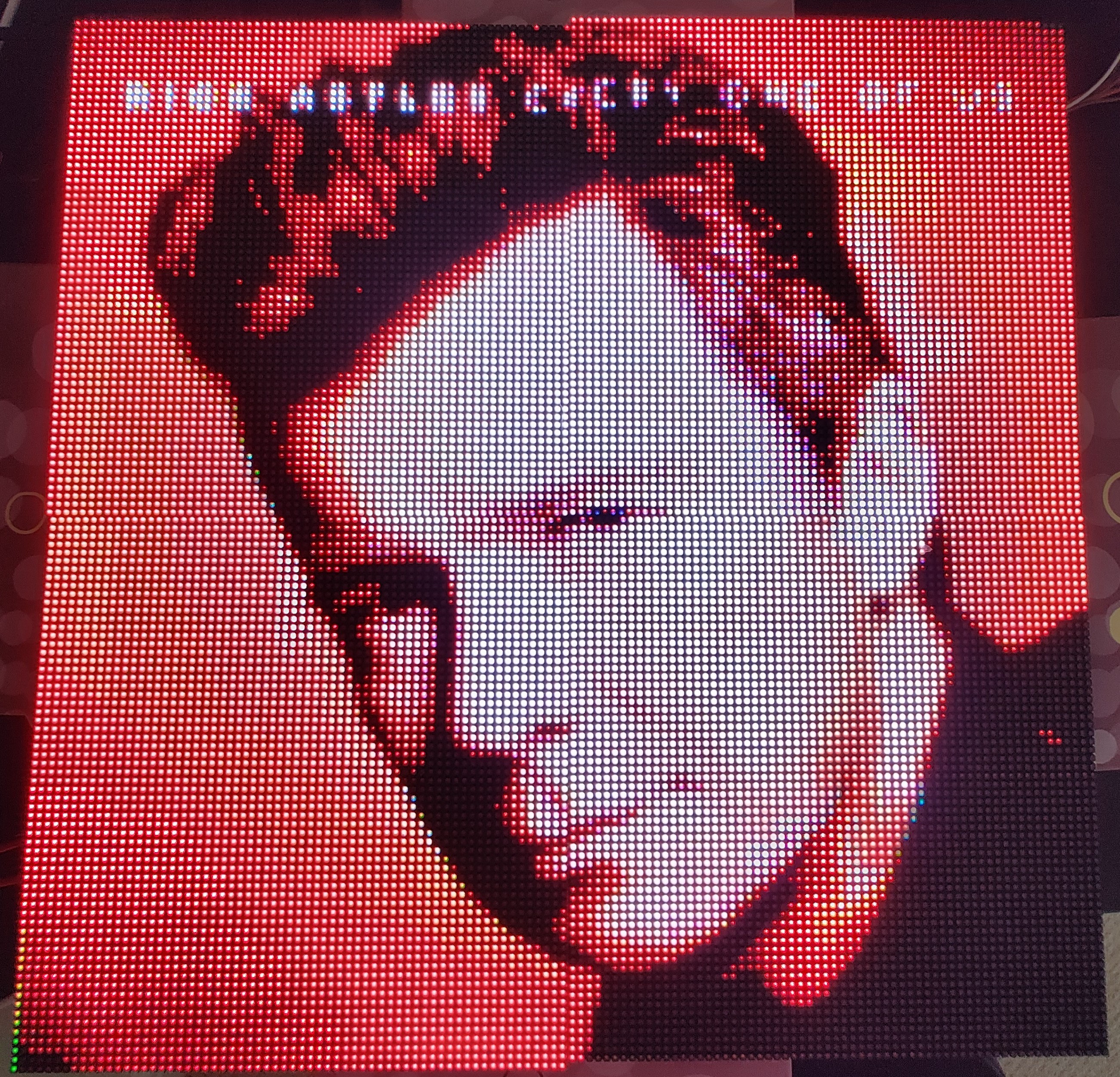
In the future I would like to frame the display and put in on my wall. I could then add features such as the time, or weather to be shown when a song is not playing.